BrowserWorkTools
Theme › 80's Neon

80's Neon Chrome Theme

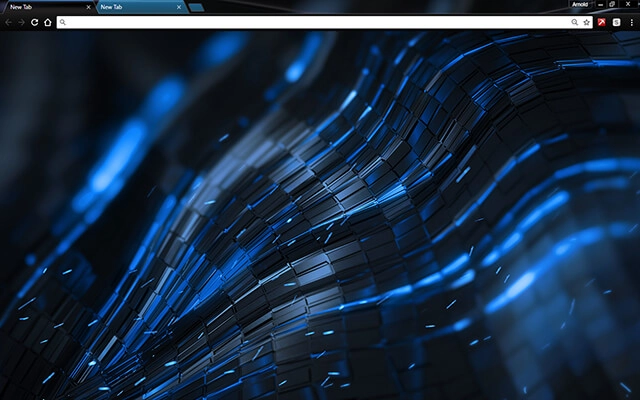
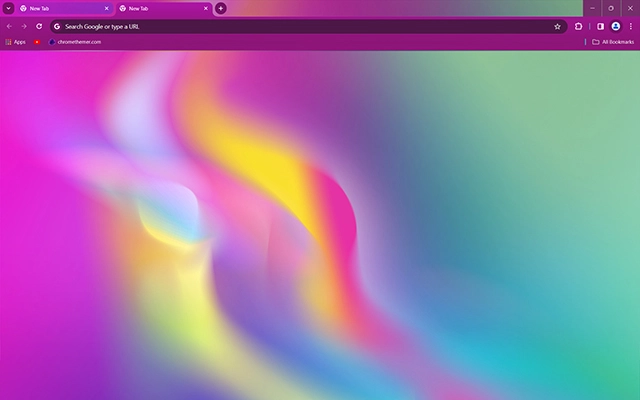
The 80's Neon Chrome Theme blends retro color brilliance with modern digital smoothness, delivering a vibrant gradient glow that transforms your browsing space. Its flowing light streaks and soft neon hues create an energizing backdrop designed to inspire creativity, clarity, and stylish daily productivity.

Created by chromethemer

Preview

Theme Overview

Designed for users who love neon aesthetics, retro color palettes, creative digital workspaces, and smooth gradients that elevate everyday browsing.

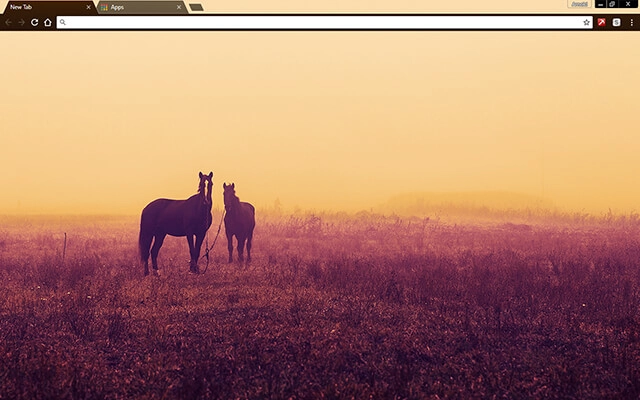
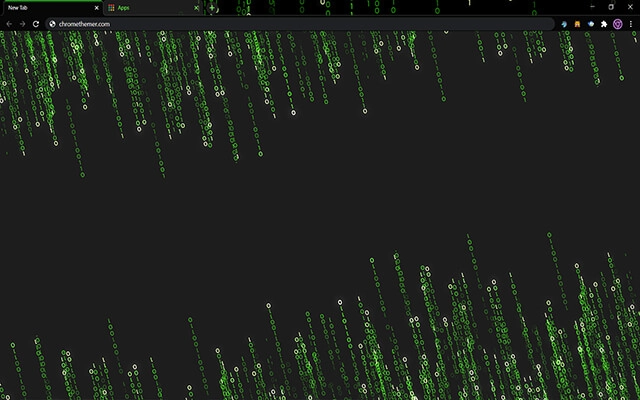
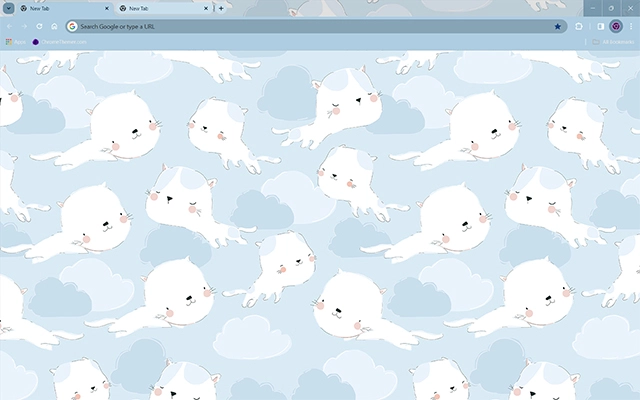
This Chrome theme features a silky blend of neon pinks, purples, yellows, and blues that flow together in a soft, fluid motion. Inspired by classic 80's glow effects but rendered with modern depth, its smooth gradients create a calm yet vibrant atmosphere. The result is a visually refreshing design that enhances focus while keeping your browser stylish.

  • Smooth neon gradients boost visual focus.
  • Retro-modern glow adds style and energy.
  • Optimized for Chrome.
  • Works great on Chromebook, Windows PC & Mac.

Behind The Theme

The 80's Neon theme captures the balance between retro inspiration and modern simplicity. With its glowing color transitions and peaceful flow, it's designed to bring clarity, mood, and atmosphere into your workspace. Perfect for users who enjoy creative environments and uplifting digital design.

This theme was inspired by the electric glow of old neon signs and the soft gradients seen in early digital art. I wanted to mix retro warmth with modern minimalism, creating a theme that feels fluid, immersive, and instantly uplifting with every new tab.

Screenshots

80's Neon preview
Screenshot

80's Neon is currently available in the Chrome Web Store. This custom theme is free to add to your browser and comes with lifetime updates.
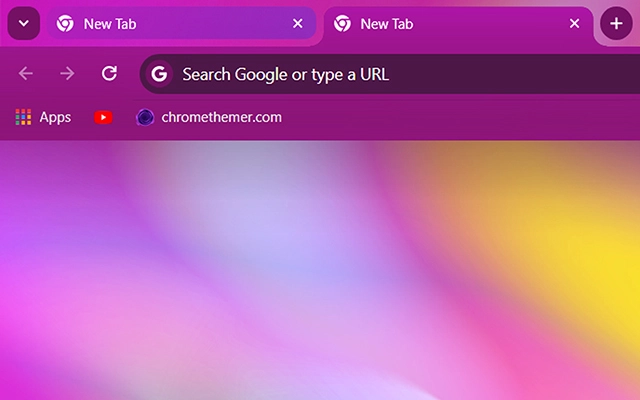
80's Neon preview
Screenshot

How To Install

Installing a Chrome theme only takes a few seconds.

1
Click the View in Web Store button.
2
You’ll be taken to the official Chrome Web Store listing for this theme.
3
Click Add to Chrome in the top-right corner.
4
Chrome will apply the theme instantly — no restart required.

Want to switch back later? Chrome settings → Appearance → Reset to default.

FAQs

Does this Chrome theme slow down my browser?

No. Chrome themes only change the visual appearance of the browser. Performance is affected more by open tabs and installed extensions.

Can I use this theme on a Chromebook?

Yes. If a theme is available in the Chrome Web Store, it works the same way on Chromebooks, Windows, macOS, and Linux.

How do I remove or reset a Chrome theme?

Open Chrome settings, go to Appearance, and click Reset to default. Your browser will instantly return to the standard Chrome theme.

Is this theme free?

Yes. This Chrome theme is free to install from the Chrome Web Store and includes lifetime updates.

Will this theme change my homepage or search engine?

No. Themes only affect colors and background images. They do not modify your homepage, new tab behavior, or search settings.
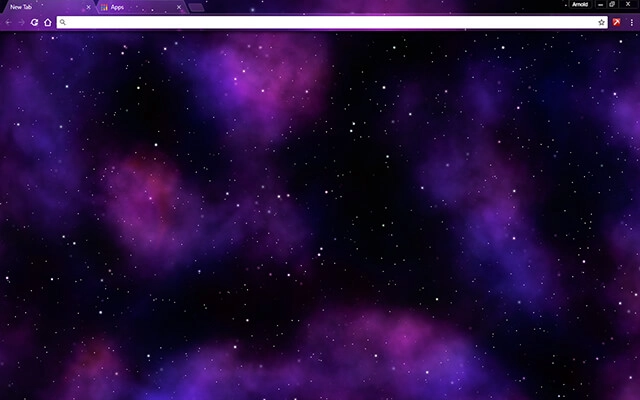
Trending

Same vibe, slightly different energy.

Themes make is super easy to chage the way your Chrome browser looks. Browse perfectly curated categories down below:

About Chrome Themes

Chrome themes allow you to personalize the appearance of your browser without changing how Chrome functions. A theme affects visual elements such as the browser toolbar, tab bar, and new tab background, helping you create a browsing environment that feels more comfortable and visually consistent.

Unlike extensions, themes do not add features, run background scripts, or access your data. They are lightweight by design and are applied instantly through the official Chrome Web Store, making them one of the simplest ways to customize Chrome safely.

Many users choose themes to reduce visual strain during long browsing sessions, improve focus, or simply make the browser feel more personal. Darker themes can help soften bright interfaces, while more colorful designs can add character without becoming distracting.

Chrome themes can be changed or removed at any time through Chrome’s appearance settings. Switching themes does not affect bookmarks, extensions, saved passwords, or browsing history, so you can experiment freely until you find a look that suits your workflow.

Why My Themes

I’ve been creating Chrome themes for a long time, and I also run ChromeThemer.com — a dedicated home for my theme library and a place where I’ve learned what people actually enjoy using every day.

You’ll find my themes on BrowserWorkTools too, but with a different mission: BrowserWorkTools.com is the more “grown-up” version, focused on practical browsing, deeper productivity, and showing you the tools, extensions, and workflows that make your browser feel like a real workspace.

If you like Chrome themes, I think you’ll love exploring BrowserWorkTools — it’s where the visuals meet better habits and smarter setups.

Note: Wallpapers are available on ChromeThemer (not on BrowserWorkTools).
Minimal Chrome theme used in a focused browser workspace
Themes designed to support daily browsing.